Showing posts with label general information. Show all posts

Setting Up Your Classroom Website on AmazingClassroom.com

In this post I will describe in detail, the steps needed to set-up your classroom website on our service.  This is a common question we get so I thought I would share it here for anyone thinking about setting up a classroom website. 

The first thing you should know is that your website URL will be AmazingClassroom.com followed by a forward slash / then your User ID.  This will be the link you will want to give out to your parents and students.

For example if your User ID was SAMPLE7 then the link to get to your website would be amazingclassroom.com/SAMPLE7  Note: It does NOT matter if you capitalize letters in a URL or not.  AmaZingClassRoom.Com/Sample7 will work just the same. 

So lets get started setting up your class website:
  • Login from our homepage and get to the main website update page which will show your website URL at the top along with your visit count and exp. date. 
  • Under all that you will see a list of show/hide links for different parts of your website.
  • Click the first one that says show/hide template selection.
  • Select a template that you might want to use from the drop down list and click the 'Apply Template' button.
  • Once the page reloads you can click the link to your website (at the top) which will pop open your website in a new tab.  Check it and if you like it, then you are done choosing your template.  If not, then repeat until you find a look that you like.  We currently have 16 choices which can all be seen here:  http://www.amazingclassroom.com/examples.asp
    Note: You can change your website look at any time by choosing a different template however each template has its own space requirements so always be sure to check your pages to make sure they are displaying correctly after any changes.
  • After you get a template that you like, click the next sections one at a time and choose options that are appropriate for you.  Always click 'save changes' after each section so nothing you type or change will be lost.  Most sections have large text ares that are pre-filled with generic text so make sure to replace it with your own relevant text.  
  • Your basic contact info section is also located here on your website update page.  This is where your login password can be changed along with your email, address, phone contact numbers, school and district names, current school year, and other important information.  Please take a minute to make sure that this information is up to date so parents can contact you.  Note: most of this information (except your login password) is shared on your classroom website so please use your public work info and not your personal info.
  •  If you do not want a particular page (like say social studies for example) open that section and uncheck the box that says "show social studies page".  After you save the changes, your social studies page link will be gone from your website.  
  • If you'd like to add classroom photos there are 4 opportunities for you to do so.  The first is under the home page info section and the other 3 are under the class photos sections.  Note:  Please make sure you have permission from parents to post pictures of children and do not use any full names in the descriptions for privacy purposes.
  • If you'd like to share a link (to another website) on your website, each subject section (math, reading, science, social studies, spelling) has an opportunity to add 2 links for that page.  Simply paste a full URL into the appropriate box and save it. Additionally, most of our website templates support automatic linking which I describe fully here:  http://www.amazingclassroom.com/templates/cold_steel/default.asp?cag=sample14 
  • If you'd like to share a file on your website, first upload it to our server, then copy and paste the link we provide into one of the large text boxes under the home page info or any of the subject sections.   You may also paste it into the link boxes provided for each subject area.  Many teachers use this feature to share files with their parents/students.   File upload links can be found under most subject sections on your website update page.
  • A page for class rules and expectations is also provided near the bottom of your update page.
  • If you'd like to make a class schedule page on your website there is a section for that near the bottom as well.  It is a simple process that will walk you through it if you choose to make one. 

Additional Notes: All pages are turned on by default when your account is created so uncheck the boxes on any sections that you do not wish to show up on your website.  Links for your students to login to their gradebook and math facts tests are also turned on by default so disable those if you are not going to be using those features of our service.  


After your initial website set-up, keeping it updated should only take a few minutes per week.  Also be sure to check out our newsletter generators, class forms, math facts tests, whiteboard resources (if you have one) and printables sections (also located under whiteboard resources) to get the most out of our service.  


One more thing... be sure to follow this blog and our facebook page to get updated when we add new stuff, which is quite often.   You can always find links to both of those at the very top of your website update page while you are logged in, so check them often.


I hope that answers some of the questions you may have had about setting up your classroom website.  If you ever get stuck or have additional questions we are always here to help, just contact us and we'll get right back to you as quick as we can.


Bryan

www.AmazingClassroom.com

New.....Smart Notebook Lessons

Just added SMART Notebook lessons to our site. Only 5 completed so far, but creating them for those teachers that use Notebook. We have always had SMART gallery packs (backgrounds, clipart, letters, etc.....but the lessons are new! Click on the link below to check them out!

Counting Songs

I love the website HAVE FUN TEACHING!  They have great songs and their "Good Morning" song is one I play at least twice a week while my students enter the room and get ready for the day.  It's so positive and no matter what kind of morning some of my students had before they arrived, they are happy and ready for the day after hearing it.


For younger learners they have other great songs.  I love their alphabet and counting songs.  Their counting songs are perfect for those early years when students are trying to get a sense of what numbers mean.  These counting songs will no doubt stick with them and help them transition from one number to another number easily.  The Counting Videos Download by Have Fun Teaching includes 26 Counting Videos (13 Beginner + 13 Expert) that teach counting, skip counting, numbers, and multiplication skills!. The download also includes printable Song Lyric Sheets for each Counting Song! These videos are a brand new way for creating a foundation in math with young learners.


Below is an example of one of their counting videos:


Visit Have Fun Teaching.  They have hundreds of great resources for your classroom.


Have you used Have Fun Teaching songs in your classroom, or any of their other great resources?  Share them below.  I would love to know how you are using them in your classroom. 


Leveling your Books for the Upcoming Year

Thanks to my walking buddy and teaching colleague, Mrs. Self I learned about Scholastic's Teaching Book Wizard.   With this free online tool you can type in the title of any book and get the lexile and/or reading level of the book.  This is a great way to sort my library for next year, so I started working on it this evening.  I have found the levels for over 50 chapter books so far and there was only one book that the Book Wizard didn't recognize.  I created some level labels that I am putting on the back cover of each book.  They are color coded.  They are circular, but I just cut them out in squares and used clear tape to adhere them to the outsides of my chapter books.  This way I can tell students which "color" books they should look for to read.  I am attaching the labels in case you can find use for them.  The first six pages say Lexile on them, and the last six pages say Level on them, depending on which you prefer to use.  
 Click here to go to Scholastic's Teacher Book Wizard

How to Install Resource Packs in ActivInspire Tutorial

I have had many questions as to how to install resource packs in Promethean's ActivInspire software.  Click on the video below and I will show you how.  Stop and start the video as needed to try installing them on your own.  I ALWAYS press stop indexing when I install my resource packs.  This is for searching purposes only, so before I search for something I am going to want to re index.  It certainly isn't necessary after each resource pack that you install.    The larger your resource library is, the longer it takes to re index.  I usually bake some cookies while I wait! 


ActivInspire Tips - Changing the Text Value

Changing the text value in ActivInspire is one of the actions (red and blue top icon) available in the actions browser of the program.  There are many great uses for this action and in this blog post I will share with you how to create a scoreboard within your flipchart!

How to Create a Scoreboard

  • First, make your background rectangle (the blue area) and then make your four other rectangles (the tan areas).  
  • Place the text for your teams in the top two tan rectangles.  I used the names team 1 and team 2.  Next, place your arrows in each box.  I placed an up and down area in each space. (Refer to the picture above). You can use the arrows with the shapes tool (the red and orange shapes on your toolbar).
  • Now, we have to set the actions, so that when we click on the arrows our numbers change.  When we click on the up arrow, we want our score to go up by 1 point.  When we click on the down arrow, we want our score to go down by one point. 
  • Type two separate zeros on your screen.  Place one in the same locations as my picture below. 
1.  Click on the up arrow underneath team 1


2.  With your arrow underneath team 1 clicked, click on change text value in your actions browser.  To open your browser click ctrl+b or view browser and then click on the red and blue top.


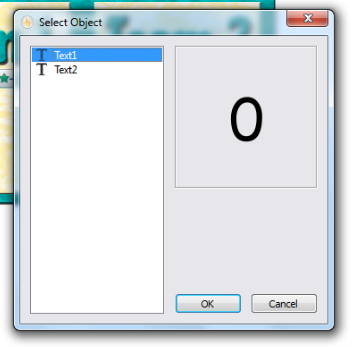
3.  Click on the browser button (the 2 dots) next to the Target (Text) space.
4.  Click on text 1.  This is the first text that I placed in my box under team one.  This is what I want to change when the up arrow is clicked.  Click ok.
5. Now, type +1 in the text box.  Make sure your arrow is still selected.  We are setting the action so when the up arrow is clicked, our text value will increase by 1.  This is why we typed +1.  If you wanted it to increase by 5 points each time the arrow was clicked, you would type +5, +10 for 10 points, etc....Then, click apply changes.  Don't click the arrow yet, let's set the down arrow.
6.  Click the down arrow under team 1.
7.  With the down arrow still selected, click change text value in your actions browser.
8.  Click on the browser button (the 2 dots) next to the Target (Text) space.
9.  Click on text 1.  This is the first text that I placed in my box under team one.  This is what I want to change when the down arrow is clicked.  Click ok.
10. Type -1 in the text box.  Make sure your arrow is still selected.  We are setting the action so when the down arrow is clicked, our text value will decrease by 1.  This is why we typed -1.  If you wanted it to decrease by 5 points each time the arrow was clicked, you would type -5, -10 to decrease by 10 points, etc....Then click apply changes.  Save your flipchart!!!
 11.  Now try to click your arrows.  When you click your up arrow, the point value should increase by one.  When you click the down arrow under team 1, the point value should decrease by 1.  Now, follow the same steps above to set the change text value action for your other two arrows under team 2. 

Hopefully, this helps you to put one more action to use in the ActivInspire software.  This can also be used to create counters, such as counting up by 5's, 10's, 20's, etc.  

Stay tuned for my newest resource pack of 20 scoreboards and counters for all of your Promethean flipchart lessons, exclusively at AmazingClassroom.com.  Happy flipchart making!!!


    Reminder about Our Terms of Use

    Due to recent events that have taken place, I am obligated to remind everyone of AmazingClassroom.com's  terms of use.  Please do not post our flipcharts, backgrounds, clipart, resources, etc..... to your own website for others to download.  Our terms of service state: Our members may download and use these files for personal or classroom use only. Files may not be sold, re-distributed, or uploaded to any other website without prior permission from amazingclassroom.com.  Thank you.

    School's Out for Me, so More Goodies for You!

    Glad school is out for me, but will sure miss my kiddos.  Two years with a group makes it hard to say goodbye, but I will see them all next year at open house as they begin their fourth grade year.  Taking a day or two to relax and back to AmazingClassroom work for me, so expect a lot of new lessons and activities to be posted to the site this summer!  I wish everyone a great summer and those a happy and safe rest of the year for those who aren't out yet or work all year round!

    And the winner for the new one year subscription is......


    1.  Sue Wolff
    2.  Liz Conrad
    3.  Tonya Copeland
    4.  Wendy Wilcoxen
    5.  Miss C
    6.  Aimee
    7.  Frances Stetler 

     Congratulations Frances!  You have won a one year subscription to AmazingClassroom.com.  Please go to our home page and register for a new account, but stop at the payment process.  Contact us through our homepage and let us know you have registered.  We will then activate your account.  

    And the Winner for the Renewal is.......

    1.  Maria Youngblut
    2.  Leah Shipley
    3.  Leslie McKinstray
    4.  Jody Erickson
    5.  Jennifer Foo 
    6.  Jessica Ryan
    Congratulations Jody - one year renewal has been added to your account!
    Your new expiration date is now July 18th, 2013 Enjoy! and Congrats Again!

    Drawing in 10 minutes.....

    Here are the one year renewal contestants.  If you win, I will automatically add one full year (365 days) to the current time left on your account.  Here are the entries.  Not many entered so you have a better chance of winning!  Good luck!
    1.  Maria Youngblut
    2.  Leah Shipley
    3.  Leslie McKinstray
    4.  Jody Erickson
    5.  Jennifer Foo 
    6.  Jessica Ryan

    Drawing in 10 Minutes.....

    Here are the entries for the new subscription and here are your numbers.  I will be using a random number generator to draw the number, so if your number is chosen, you will win the one year subscription to AmazingClassroom.com.
    1.  Sue Wolff
    2.  Liz Conrad
    3.  Tonya Copeland
    4.  Wendy Wilcoxen
    5.  Miss C
    6.  Aimee
    7.  Frances Stetler


    Will post the renewal contestants in a few.....

    Last Chance - Giveaway Ends Tonight!

    I am giving away one NEW yearly membership to www.AmazingClassroom.com
    and a one year RENEWAL to one of our current subscribers.
     The yearly membership and renewals are both valued at $29.95.
    Here’s all you have to do to enter the drawing: 
    1.  Follow my blog and let me know that you are now a follower along with a comment stating which contest you are entering, either the NEW membership or the RENEWAL. 
    2.  Follow us on Facebook:  http://www.facebook.com/pages/AmazingClassroomcom/258716574275and leave a comment about the contest.
    3.  Copy my blog button and add it to your blog if you have one.  If not, you can skip this step. 
    Once you do these things you will be entered into the drawing.  Winners will be notified by this evening, May 20th at 9:00 p.m. central standard time.
    Good Luck!

    Coming Soon....Noun, Verb, or Adjective Poster Game

    Check out what's coming next!  This is a picture of the Noun, Verb, or Adjective game coming soon......all the printable pieces you need to create your own poster board game.  Look for it on AmazingClassroom.com in the printables section by Thursday of this week!


    Happy Mother's Day


    I think I have an addiction......

    Any other teachers out there have a Pinterest, Teachers Pay Teachers, Teacher's Notebook, and teaching blog addiction?  I think I do.  I have so much fun buying clip art,  buying stuff created by other teachers for my own classroom, searching for teacher freebies, and creating things for AmazingClassroom.  It's what I look forward to doing when I have spare time.  I love learning from others and finding new ways to always improve as a teacher.  What are your thoughts?  Do you have this addiction too?

    One Year Subscription FREE to AmazingClassroom.com

    Let me start by saying how much I appreciate all of you. 
    Happy Teacher Appreciation Week! 

     I am giving away one NEW yearly membership to www.AmazingClassroom.com
    and a one year RENEWAL to one of our current subscribers.
     The yearly membership and renewals are both valued at $29.95.

    Here’s all you have to do to enter the drawing: 
    1.  Follow my blog and let me know that you are now a follower along with a comment stating which contest you are entering, either the NEW membership or the RENEWAL. 

    2.  Follow us on Facebook:  http://www.facebook.com/pages/AmazingClassroomcom/258716574275and leave a comment about the contest.

    3.  Copy my blog button and add it to your blog if you have one.  If not, you can skip this step. 

    Once you do these things you will be entered into the drawing.  Winners will be notified by Sunday, May 20th at 9:00 p.m. central standard time.

    Good Luck!


    Printable Behavior Reports - Another New Feature for Our Members

    We are so excited to announce the easiest behavior reports ever.  Each week it takes time to create those reports to send home to parents.  Not anymore!  Just log in to your account, (register your students if you don't have them registered already), click on forms in the upper right hand corner, and choose your choice of three styles.  The exact amount of reports generates with all of your students' names typed in, the date filled out, along with the teacher's name.  Just click on each student's behavior for the week, and if you need to, type a little something.  Then save as a pdf to print now or later!  Let us know what you think!
    Not a member of AmazingClassroom.com?  It's only $29.95 for a fully year (365 days) and you have access to tons of time saving resources!

    Printable Calendar Templates - Now Available

    We are so excited to launch the newest feature for our teachers.  Editable and Printable calendar templates.  Log in to your account, click on forms in the top, right hand corner, click on the calendar and choose your month.  Type in the boxes and click save or print.  It's that easy.  Use from any computer.  No more having to pull up saved templates in word or search for them on your computer.  Simple and easy as well as a huge time saver for teachers!  Let us know what you think.  
    Not a member?  It's only $29.95 for a full year (365 days) and you have access to tons of time saving resources!
    Older Post ►
    eXTReMe Tracker
     

    Copyright 2011 Amazing Classroom Blog is proudly powered by blogger.com